
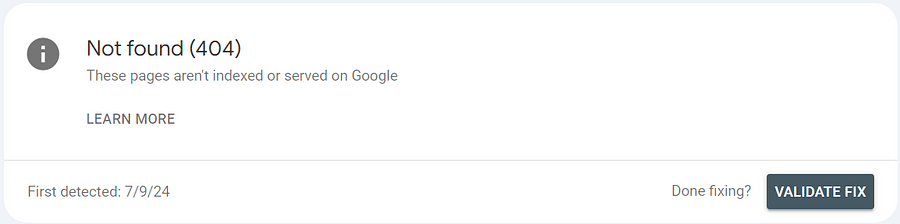
Not Found 404 error is a common indexing error you might frequently see among the Google Search Console indexing problems.
Today, we are going to find out;
- What & Why a 404 error is coming
- When to solve or ignore the error
- How you can fix it if it needs to be addressed.

Understanding 404 Errors and Their Causes
Alright, let’s break this down. A Not Found (404) error happens when someone tries to visit a page on your website that doesn’t exist. Imagine clicking on a link expecting to find the page you want, but instead, you get a message saying, “Oops, page not found!” Frustrating, right?
These errors happen due to a few reasons. We need to know why these are happening before we find solutions right? But first, how the Google Search Console finds them needs to be answered!
How Google Search Console Happens to Identify Not Found (404) Error?
When a new page is published or a page gets updated, Googlebots will crawl them (visit the URL) & do some tricks. That’s how your pages are going to be indexed among the other search results (SERPs). If the content has great value, it will be even ranked top.
But what if Google bots cannot find the page by crawling the URL? A URL that “does not exist! All these indexing processes will be halted. And your page will not be indexed among SERPs.
Why do these frustrations happen? Let’s find out all the reasons that could result in a Not Found (404).
Deleted or Moved Pages
If you delete a page or move it to a different URL without setting up a redirect, users, and search engines won’t be able to find it.
Typos in URLs
Sometimes, a simple typo in the URL can lead to a 404 error. It could be due to;
- Typing the URL wrongly when searching for the content page.
- Accidentally deleting a letter or a part of the URL when trying to index it manually with GSC.
Outdated or Broken Links
If other websites link to a page on your site that no longer exists, visitors clicking those links will see a 404 error.
Changes in URL Structure
If you’ve restructured your site or changed your URLs without proper redirects, you’ll likely see an increase in 404 errors.
Understanding why these errors happen is the first step to fixing them and ensuring your visitors have a smooth experience on your site. So, let’s move on to how we can fix these pesky errors!

Now that we know what causes 404 errors, let’s get into how to fix them. The first step is identifying where these errors are occurring on your site.
Do I Need to Fix the Not Found (404) Errors?
No. You don’t have to keep fixing every Not Found (404) you will encounter. Even Google has confirmed in their Google Search Central blog, that only some of 404 errors do hurt your site.
They say it’s a normal thing to happen and they respect those errors to happen commonly.
But Some Errors You Should Fix! (even though it’s not vital).
Having a 404 error usually disrupts a good user experience, and it could cause;
- Losing the trust
- Moving to other alternative sites (high bounce-back rate)
- Could hurt the ranking on SERPs
Where to Find the Not Found (404) Errors?
- Log into Google Search Console: Open your browser and navigate to Google Search Console.
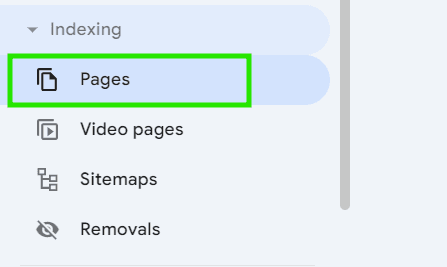
- Go to the “Pages” Section: In the sidebar, find the “Indexing” section and click on “Pages.” This will show you a list of pages Google has indexed and any errors it has found.
3. Find Pages with 404 Errors: Look for pages that are listed as “Not found (404).” These are the URLs that visitors and search engines can’t access.

How to Investigate the Cause for a 404 Error
Once you’ve identified the pages with errors, the next step is to figure out why they’re happening.
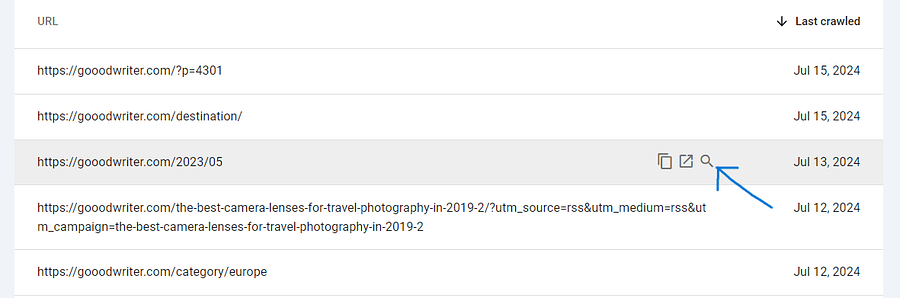
Click on Each Error:
In Google Search Console, click on the URL of each error to get more details. This will show you a snapshot of when Googlebot tried to access the page and what went wrong.
Determine the Cause:
- Deleted Page: Check if the page was intentionally deleted.
- Moved Page: See if the page was moved to a new URL without setting up a redirect.
- Typo: Verify if there’s a simple typo in the URL causing the error.
Understanding the root cause of each 404 error will help you determine the best way to fix it.
How to Correct the Not Found 404 Issues In GSC
Now that you know what’s causing the 404 errors, it’s time to fix them.
Use 301 Redirects
If you moved a page to a new URL, set up a 301 redirect from the old URL to the new one. This tells search engines and visitors that the page has permanently moved.
You can easily set up redirects in WordPress by using a redirect plugin.
Restore the Page
What if you accidentally deleted a web page? Simple. When a page was deleted by mistake, restore it. But, ensure it has the same URL as before to avoid any disruption. Most website developing tools like WordPress will keep deleted contents for sometime around, so you can restore them when accidents happen!
Fix Broken Links
Correct any internal or external links that are broken or mistyped. Update your website’s navigation and other references to ensure all links point to the correct URLs.
Remove Deleted Pages
This is not necessary but always better if you do it (eventually it will happen). You can remove the deleted pages from your site map or you can update the sitemap into a new one.
Update Your Sitemap
Alright! After correcting the 404 errors, it’s essential to ensure your sitemap reflects these changes. Here’s how you can do it:
- Ensure your sitemap is up-to-date: Remove any URLs that led to 404 errors and add any new URLs.
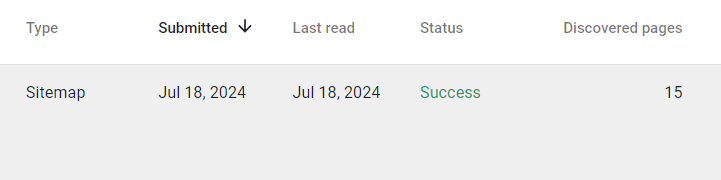
- Find whether there are any Unsuccessful statuses on your sitemap list.
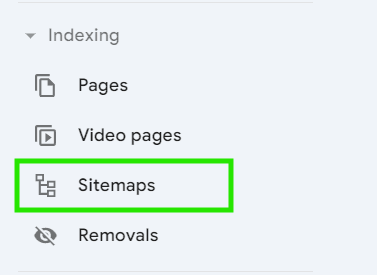
- Resubmit your sitemap in Google Search Console: Navigate to the “Sitemaps” section in Google Search Console.
- Submit your updated sitemap. This helps Google crawl and index your site more efficiently.

Monitor Regularly
As for now, you should know, that fixing 404 errors isn’t a one-time task. You have to come again and again to check and update any issues. Regular monitoring can help catch new errors early and keep your site healthy.
- Regular Checks in Google Search Console: Frequently check the “Pages” section for any new 404 errors.
- Use Website Auditing Tools: Tools like Screaming Frog or Ahrefs can scan your site for broken links and other SEO issues.
Best Practices to Prevent 404 Errors
With time and experience, you will understand and practice what to do and what not to do to avoid errors.
- Consistent URL Structure: Maintain a logical and consistent URL structure. Avoid changing URLs unnecessarily.
- Proper Redirects: Always set up 301 redirects when moving or renaming pages.
- Custom 404 Page: Create a helpful 404 error page that guides users back to your site. This can improve user experience even when errors occur.
- Regular Link Checks: Periodically check and update internal and external links to ensure they are still valid.
Conclusion
Fixing 404 errors in the Google search console is essential for maintaining a healthy website and providing a great user experience. By identifying and resolving these errors promptly, you can ensure your website remains accessible and search-engine friendly.
Regular monitoring and following best practices can help prevent these errors from occurring in the first place, contributing to a seamless browsing experience for your users.
By following these steps, you’ll be well on your way to a cleaner, error-free website that ranks better in search results.
Happy fixing!
Subscribe to my newsletter❤️ and Be the first to read my newly published articles.