Google Search Console Errors:

Share this post

Table of Contents

How to Create Azure Blob Storage from Scratch

Share this post

Azure Blob Storage is the place where youĀ can store everything.

  1. Your files
  2. Images
  3. Videos
  4. Audio

Anything 1 and 0. Although you will not do that with the experience you get with the seasoning, keep in mind that the blob storage can do that.

Before going to create the blob,

For those who are new to the gang, you can officially join the bestĀ Azure MastersĀ gangĀ on EarthĀ by Subscribing below.

SubscribeĀ to my channel. Thanks!Ā ā¤ļø

Blob storage is one of the services provided by the Azure storage accounts.

  1. Files
  2. Blobs
  3. Tables
  4. Queues

Therefore, in order to create a Blob, we have to create a storage account first.

Creating a Storage account is a straightforward thing. Search for the ā€œStorage Accountā€ in the Azure portal and select the highlighted one, — not the classic one.

šŸƒ Then click on Create.

šŸƒ The portal will redirect you to the Storage account creation page. It will look like this.

šŸƒ The next step is filling above inputs. Select the Azure subscription you have. In my case, it’s the ā€œAzure for studentsā€ subscription.

šŸƒ Select the Resource group we created in the previous episode.

šŸƒ Give a meaningful name to your Storage account. It may be like ā€œstoragestudentsā€.

Keep in mind that the field can containĀ only lowercase letters and numbers. The name must be between 3 and 24 characters.

šŸƒ Select the region. (Again don’t worry too much about the region. We will master them in future episodes).

1. Storage accounts will cost you per month and usage.
2. The cost will also vary with the region we use.
3. We will delete this storage account after using it for now.

šŸƒ Keep all the other details as default and go to the Advance tab.

šŸƒ Put a tick on ā€œAllow enabling anonymous access on individual containersā€.

šŸƒ Hit ā€œReview + Createā€.

šŸƒ Hit ā€œCreateā€.

Tada! You have created your first-ever Storage account in Azure. Now it’s time to create theĀ Blob Storage.

Now you have done with the basic steps, let’s go straight to create the Blob Storage. Click the ā€œGo to Resourceā€ button to navigate to the created Storage account.

Inside the created Storage account, you will have the option to choose between Files, Blobs, Queues, and Tables.

šŸƒ Let’s go with Blob Service. You can also see this in the sidebar as ā€œContainersā€ (I don’t know why the hell they named the same service by two names).

But they both are the same. Click it.

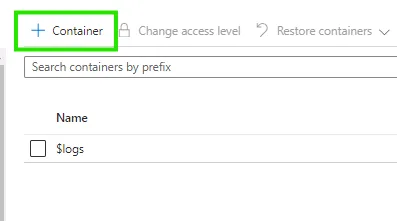
On the next page, click on the Container.

šŸƒ Give a proper and meaningful name as I say always.

šŸƒ Choose the ā€œBlob (anonymous read access for blobs only).

šŸƒ Hit ā€œCreateā€.

Congratulations, You have completed creating aĀ Blob Storage!Ā You are one step closer to mastering Azure Fundamentals.

Although we created the Storage account and Blob Storage, it’s better to remove it as soon as possible because it will cost your subscription. So, you can continue practicing Azure without any cost concerns.

Since the blob storage is inside the storage account, you can delete both resources by simply deleting the Storage account.

šŸƒ Go to the Storage account and click on ā€œDeleteā€

šŸƒ If you can’t find it, go to Home and then choose the:

Resource Group → Storage Account.

But what if you got this message😧And now it will cost you.

You will find the solution in — Azure Resource Locks

SubscribeĀ to my channel. Thanks!Ā ā¤ļø

Write for Us!

Share your beautiful stories with Good Writer. We will show them to the rest of the World to see!
(+ a Backlink)

Subscribe to Dive into stories, how-tos, and insights from top writers and freelancers doing things their own way.

Written By
Picture of Dumindu Patabandi
Dumindu Patabandi
Professional Writer

Leave a Reply

You may also like